SetupOn your TV
Once per TV. Takes about two minutes.
Coming soon: the TV version isn't on Google Play for TVs yet. Until it is, watch on a laptop (below). Before a party, open Movie Nights Club on the TV and leave it on screen: some TVs pause apps running in the background.
-
Install Movie Nights Club on the TV
On the TV, open Google Play, search for Movie Nights Club and install it. (It's the same app as on your phone.)
Open in Google Play -
Allow “Display over other apps”
The app asks for this once. It lets the countdown and your friends' reactions show on top of Netflix and Prime Video. The app opens the right setting for you: turn it on, then press Back.
Movie Nights Club
Display over other apps -
Pair it with your phone
The TV shows a code. On your phone: Settings → Connected devices → Connect, then type the code. The TV now knows it's you.
On your phone: Settings → Connected devices → ConnectK7M2QXThe code works for 10 minutes.
SetupOn your laptop
Once per computer, in Google Chrome. The extension isn't in the Chrome Web Store yet, so you add it by hand.
-
Download the extension
Then unzip it (double-click the file). You'll get a folder called movie-nights-club-extension. Keep it somewhere it won't get deleted, like Documents.
Download for Chrome (.zip)Added it before October 26? Download it again, replace the old folder with the new one, then press ↻ on Movie Nights Club in
chrome://extensions. -
Open the extensions page and turn on Developer mode
Type
chrome://extensionsin the address bar and press Enter. Turn on Developer mode (top right).
-
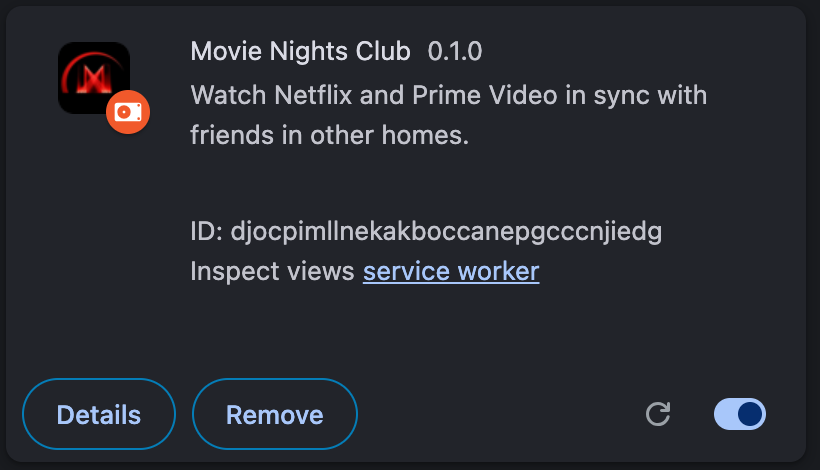
Click “Load unpacked” and pick the folder
Choose the unzipped movie-nights-club-extension folder. Movie Nights Club shows up in the list.
-
Pin it
Click the puzzle piece next to the address bar, then the pin next to Movie Nights Club, so it's always one click away.
-
Pair it with your phone
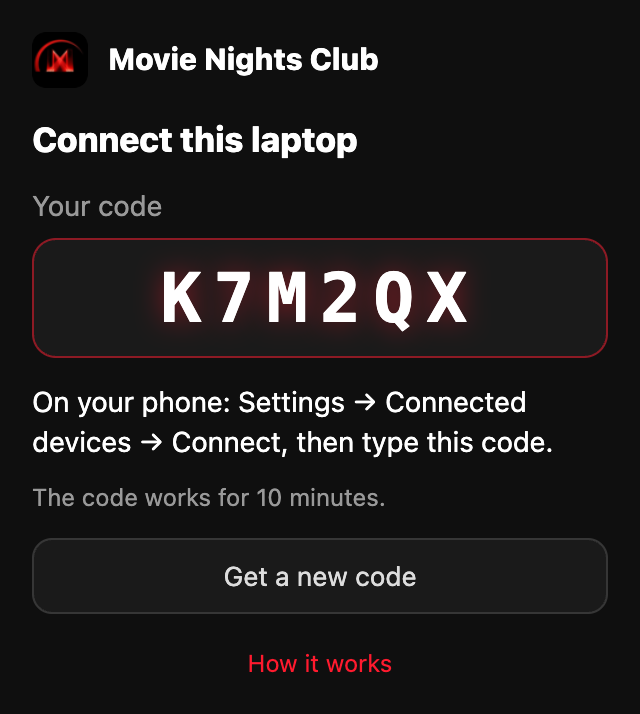
Click the Movie Nights Club button. It shows a code. On your phone: Settings → Connected devices → Connect, then type the code. Make sure you're signed in to Netflix or Prime Video in this Chrome.
Every timeStart a watch party
From the phone app. Your friends get a notification and join from theirs.
-
Open a movie or show and tap “Watch together”
Pick Netflix, Prime Video or Any app or site, then pick friends or a group.
-
Everyone picks where they'll watch
TV: tap “Open on TV”. The title opens on the TV and waits at the start. On Netflix, pick your profile; on Prime Video, press ↺ Start over. Then tap I'm ready.
Laptop: tap “Open on laptop”. A Chrome tab opens. Press play once: the movie stops at the very start and tells everyone you're ready.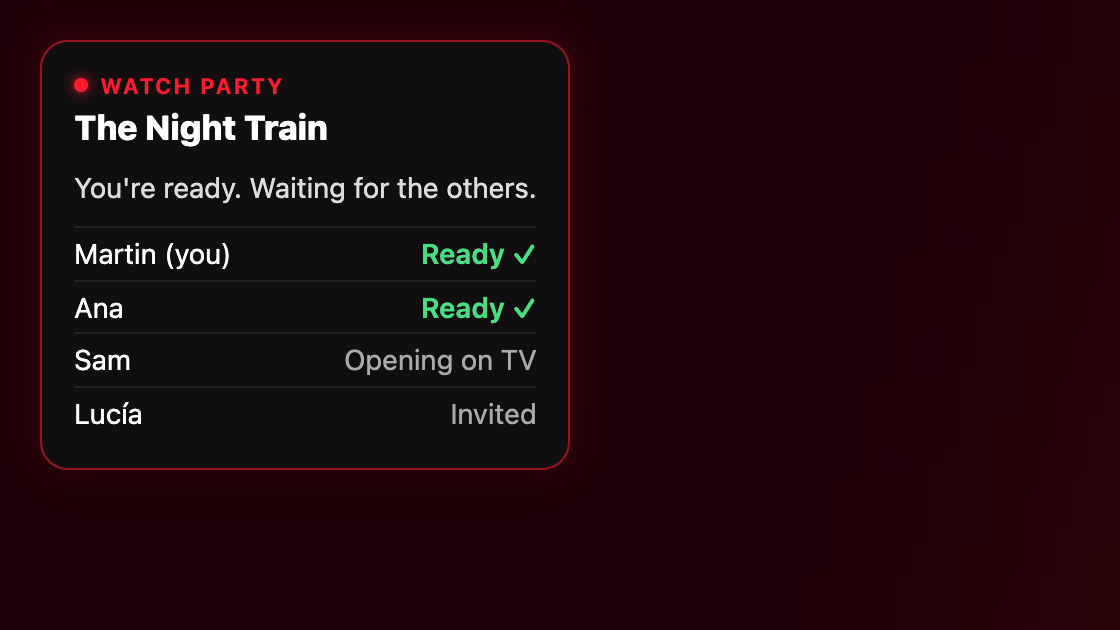
-
It starts by itself
When everyone is ready, every screen counts down and the movie starts at the same moment for all. Waiting on someone? After a minute anyone can tap “Start without them”.
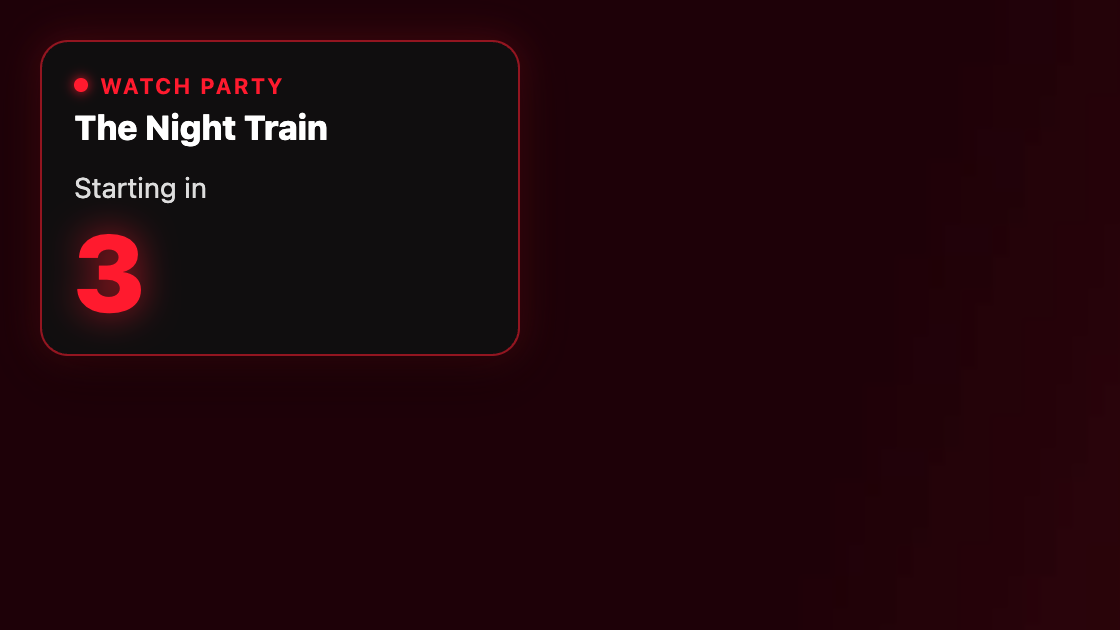
-
Pause for everyone, and react
Pause or play from any phone and everyone's movie follows. Reactions you send float over everyone's movie with your name.
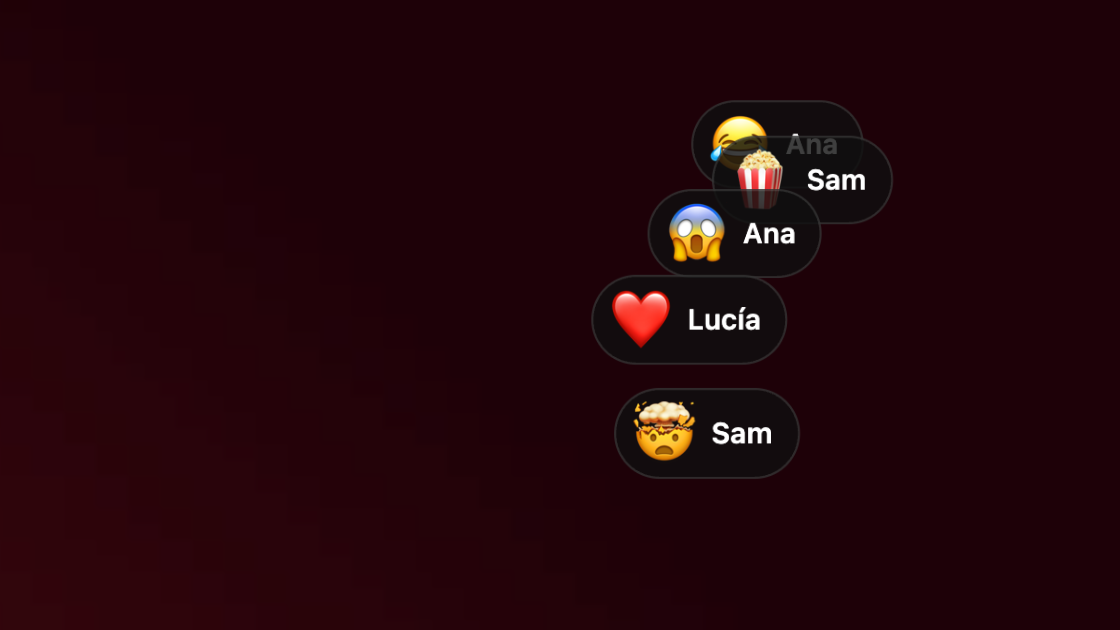
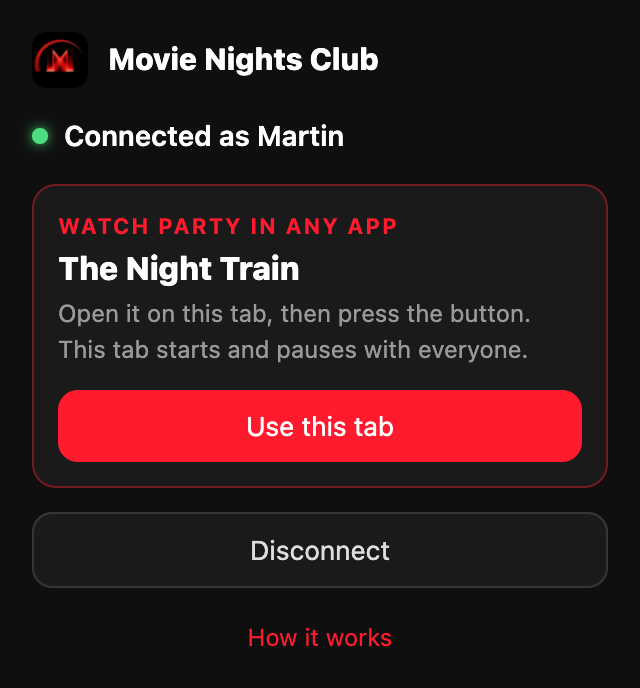
TV: tap “Use my TV”, open the title in any app on the TV and pause it at the very start. The TV presses play at zero and pauses with everyone.
Laptop: open the title in Chrome on any site, click the Movie Nights Club button and choose Use this tab. The tab waits at the start and tells everyone you're ready.
Watching on a phone, a tablet or another kind of TV? The app counts down and you press play at zero.